If you are like me and do a lot of importing and sorting and just want data at your fingertips without having to go through Business Central, you like to have data either in SQL or in Excel. Why? Because you can do xlookups or other necessary evils when creating import tables with configuration packages or other automation.
So how do you go about getting the data into Excel? You can use PowerAutomate with Business Central.
I will show you the steps that I had to take to do this.
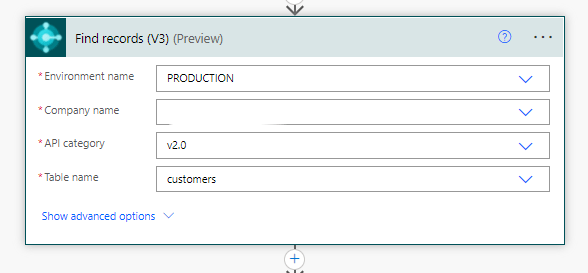
Step 1: Use the Business Central Connector in PowerAutomate and use the FIND RECORDS (V3). You will need to input the Environment Name (usually Production) and then the company name. Use the API v2.0, and for my case, I used the customers table.
Step 2: Add another step, APPLY TO EACH and use the output from the previous step. Choose the one that says VALUE (List of items). Then select EXCEL ONLINE BUSINESS > ADD A ROW INTO A TABLE and work your way through to the Excel file that you created for this. Remember, your data MUST sit in a table in Excel, so you have to formulate this first. Your flow should look like this, but your table may look different from mine.
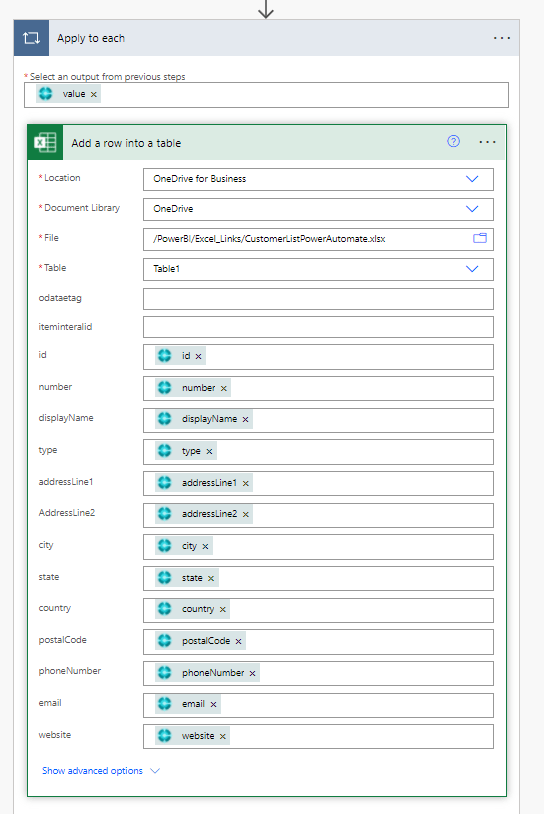
Simply go through the different headers in your excel file and simply plop down the the data that you need for each one. You will have an excel file that looks like this in the end (I have obfuscated the confidential data)

 DIY Accountant