The Master Calendar is super important in PowerBI, especially if you want to run reports using relative dates or a series in time. Essentially all tables, should be linked to your master calendar via the date field.
This is what PowerBI looks like when the dates are all joined. You should use the date field to connect to other date fields. It is usually a 1 to many relationship.
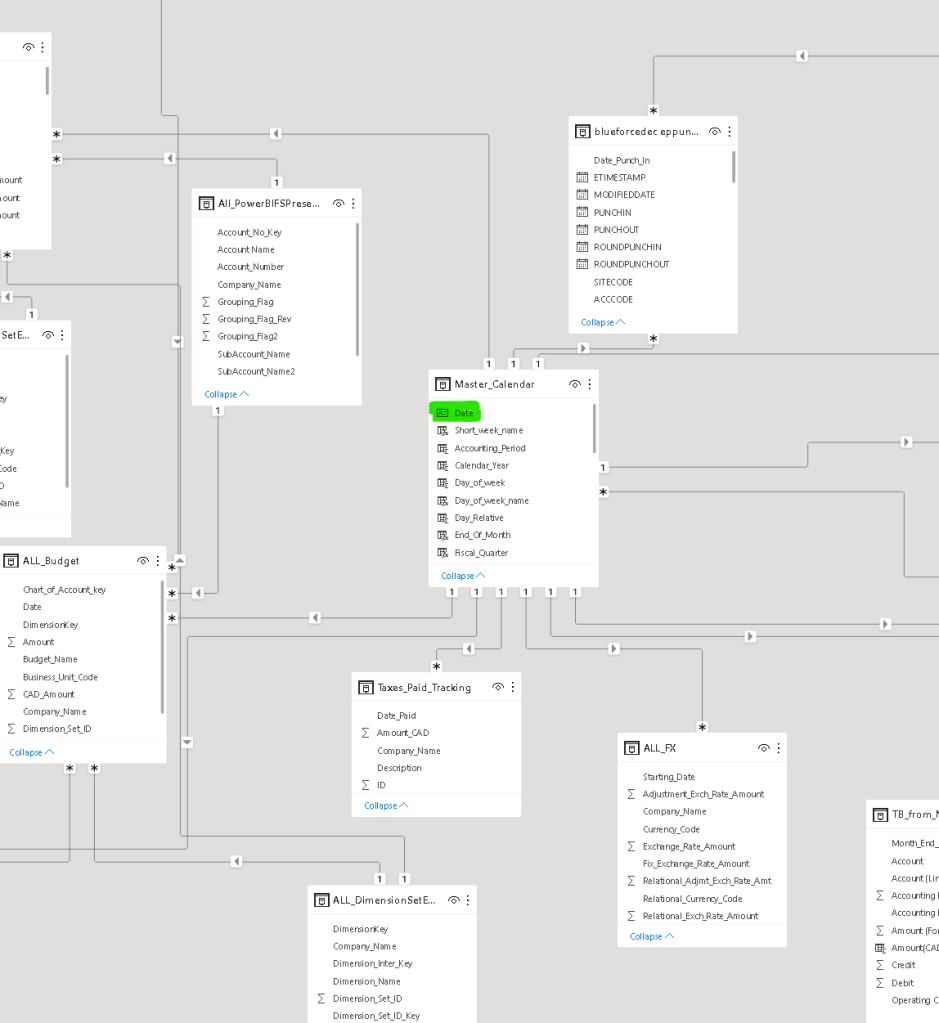
The Master Calendar is important, especially for financial reporting because you can create columns that indicate fiscal year, fiscal period, week number, year, year to date flags, next month, last twelve months and so forth. Here is a Master Calendar that I created:

The Master Calendar allows you to use slicers to filter out data automatically. This is very important when creating financial reports that are a point in time, such as the balance sheet vs income statement which is a period of time. It is exceptionally useful when running trial balance data. If you are short on time, you can just use the steps below to create the Master Calendar in PowerBI:
- Click on NEW TABLE (name the table Master_Calendar)
- Make sure you mark the table as a date table by clicking on DATE TABLE
- Then start by adding this column
- Your first column is a column of dates automatically generated by PowerBI:
DATE=(CALENDAR(START DATE,TODAY())- Note, you can add to the number of days beyond today() by simply putting a + and the number of days you want to go beyond today. Like this:
- DATE=(CALENDAR(START DATE,TODAY()+30)
- Then add the following each as a new column:
	1. DATE=(CALENDAR(START DATE,TODAY())

	2. Day_of_week =

	3. Date relative to today = 1*([Date]-today())

	4. Day_of_week_name = IF('Date'[Day_of_week]=1,"Monday",IF('Date'[Day_of_week]=2,"Tuesday",IF('Date'[Day_of_week]=3,"Wednesday",IF('Date'[Day_of_week]=4,"Thursday",IF('Date'[Day_of_week]=5,"Friday",IF('Date'[Day_of_week]=6,"Saturday","Sunday"))))))

	5. Fiscal_Year = IF(MONTH([Date])>=8,YEAR([Date])+1,YEAR([Date]))

	6. Fiscal_Quarter = IF(AND(MONTH([Date])>=8,MONTH([Date])<=10),"Q1",IF(OR(MONTH([Date])>=11,MONTH([Date])<=1),"Q2",IF(AND(MONTH([Date])>=2,MONTH([Date])<=4),"Q3",IF(AND(MONTH([Date])>=5,MONTH([Date])<=7),"Q4"))))

	7. Accounting_Period = IF(MONTH([Date])=8,1,IF(MONTH([Date])=9,2,IF(MONTH([Date])=10,3,IF(MONTH([Date])=11,4,IF(MONTH([Date])=12,5,IF(MONTH([Date])=1,6,IF(MONTH([Date])=2,7,IF(MONTH([Date])=3,8,IF(MONTH([Date])=4,9,IF(MONTH([Date])=5,10,IF(MONTH([Date])=6,11,IF(MONTH([Date])=7,12))))))))))))

	8. Week_number = WEEKNUM([Date],2)

	9. Weekday_or_weekend = IF(AND([Day_of_week]>=1,'Date'[Day_of_week]<=5),"Weekday","Weekend")

	10. Month_relative = 12 * Year([Date])+Month([Date])-12*Year(today())-Month(today())

	11. Last_12_Months = IF(AND('Date'[Month_relative]>=-12,'Date'[Month_relative]<=-1),"LTM","")

	12. Fiscal_Year_Presentation = CONCATENATE("FY",[Fiscal_Year])

	13. Fiscal_Year_Quarter = CONCATENATE([Fiscal_Year_Presentation],[Fiscal_Quarter])

	14. Month = IF(MONTH([Date])=1,"January",IF(MONTH([Date])=2,"February",IF(MONTH([Date])=3,"March",IF(MONTH([Date])=4,"April",IF(MONTH([Date])=5,"May",IF(MONTH([Date])=6,"June",IF(MONTH([Date])=7,"July",IF(MONTH([Date])=8,"August",IF(MONTH([Date])=9,"September",IF(MONTH([Date])=10,"October",IF(MONTH([Date])=11,"November","December")))))))))))

	15. End_Of_Month = (EOMONTH([DATE],0))

	16. Start_Of_Month = STARTOFMONTH('Date'[Date])

	17. Month_Number = MONTH('Date'[Date])

	18. Fiscal_Year_Period = CONCATENATE("FY",CONCATENATE('Date'[Fiscal_Year],CONCATENATE(" - P ",'Date'[Accounting_Period])))

	19. Short_week_name = left('Date'[Day_of_week_name],3)

	20. Calendar_Year = year('Date'[Date])
You should have a Master_Calendar table similar to the one I have. This is a very important step to creating financial reporting (or other time based reporting in PowerBI.
Please note that the fiscal year in this examples starts on Aug 1. If you want to change the fiscal year start date simply change items 5, 6 and 7 to your corresponding fiscal year to the period.
 DIY Accountant